
Network forms, tests, information and progress
The network area’s list screens are only one part of the design. Adapter configuration, Wi-Fi editing, services, mounts, credentials and DNS reuse the Setup framework. Information and logs use scrollable text, and network restart uses the global Processing overlay.
How Setup selects a skin
Abschnitt betitelt „How Setup selects a skin“For a class such as NetworkAdapterSetup, calling Setup(..., setup="NetworkAdapter") produces these candidates in order:
NetworkAdapterSetupsetup_NetworkAdapterSetupNetworkAdapterSetupIf the matching data/setup.xml entry supplies a skin attribute, Setup inserts that name at the front. The initial class name comes from Screen; the next two names use the setup key, which need not equal the class name. For example, NetworkMountSetup uses NetworkMounts; DNSSettings uses DNS; NetworkPassword uses Password.
Use a shared Setup design to establish consistency, then override a specific screen only when its content needs different space. A shared panel can hold key captions and background elements, but must preserve optional-source conditions.
Keep the full form contract
Abschnitt betitelt „Keep the full form contract“Setup declares config, footnote and description as mandatory widgets. config is a ConfigList GUI component; it is not a generic List source to replace with XmlMultiContent. The framework owns editors, booleans, selections, text input, help and dynamically rebuilt rows.
<screen name="Setup" position="center,center" size="1100,580" resolution="1280,720"> <widget name="config" position="20,20" size="1060,350" font="Regular;25" itemHeight="35" scrollbarMode="showOnDemand" enableWrapAround="1" /> <widget name="footnote" position="20,385" size="1060,30" font="Regular;20" /> <widget name="description" position="20,425" size="1060,95" font="Regular;20" /> <!-- Include the conditional key bar and text-input support from your common Setup layout. --></screen>This fragment illustrates the three content regions; it is not a complete replacement for every editing aid. Preserve the common red/green captions, optional yellow/blue/menu/info/help captions, the virtual-keyboard indicator and HelpWindow behaviour. An empty footnote should not overlap description when it becomes visible. Long help text is common in network settings, so allow several lines.
Forms and contextual actions
Abschnitt betitelt „Forms and contextual actions“| Owner / setup key | Skin detail to retain |
|---|---|
NetworkAdapterSetup / NetworkAdapter |
Dynamic DHCP/manual rows and key_info |
NetworkWiFiSetup / NetworkWiFi |
Security-dependent fields, editing help and key_info |
DNSSettings / DNS |
Yellow/blue Move Up/Move Down captions appear only where reordering is allowed |
NetworkServicesSetup / NetworkServicesSetup |
Yellow Start/Stop and optional blue Show Log depend on the selected daemon |
NetworkInadynSetup / NetworkInadynSetup |
Common form geometry and text input |
NetworkuShareSetup / NetworkuShareSetup |
Yellow Shares action |
NetworkMiniDLNASetup / NetworkMiniDLNASetup |
Yellow Shares action |
NetworkNFSSetup / NetworkNFS |
Yellow exports-related action |
NetworkSambaSetup / NetworkSamba |
Common form and descriptions |
NetworkPassword / Password |
Password editor and dynamic yellow password action |
NetworkZeroTierSetup / NetworkZeroTier |
Dynamic yellow/blue captions |
NetworkMountSetup / NetworkMounts |
Mount protocol/method options and descriptive text |
NetworkCredentials / NetworkCredentials |
Credentials editor with its normal masking behaviour |
Skin captions should follow their sources. Do not replace Start/Stop with a fixed “Start” label or DNS reordering with a fixed decorative key. The owner controls whether the action is enabled.
The share-directory selector uShareSelection uses checkList (MultiFileSelectList), so retain directory navigation and selection marks. Its component is distinct from the network-share discovery list.
NetworkTest result rows
Abschnitt betitelt „NetworkTest result rows“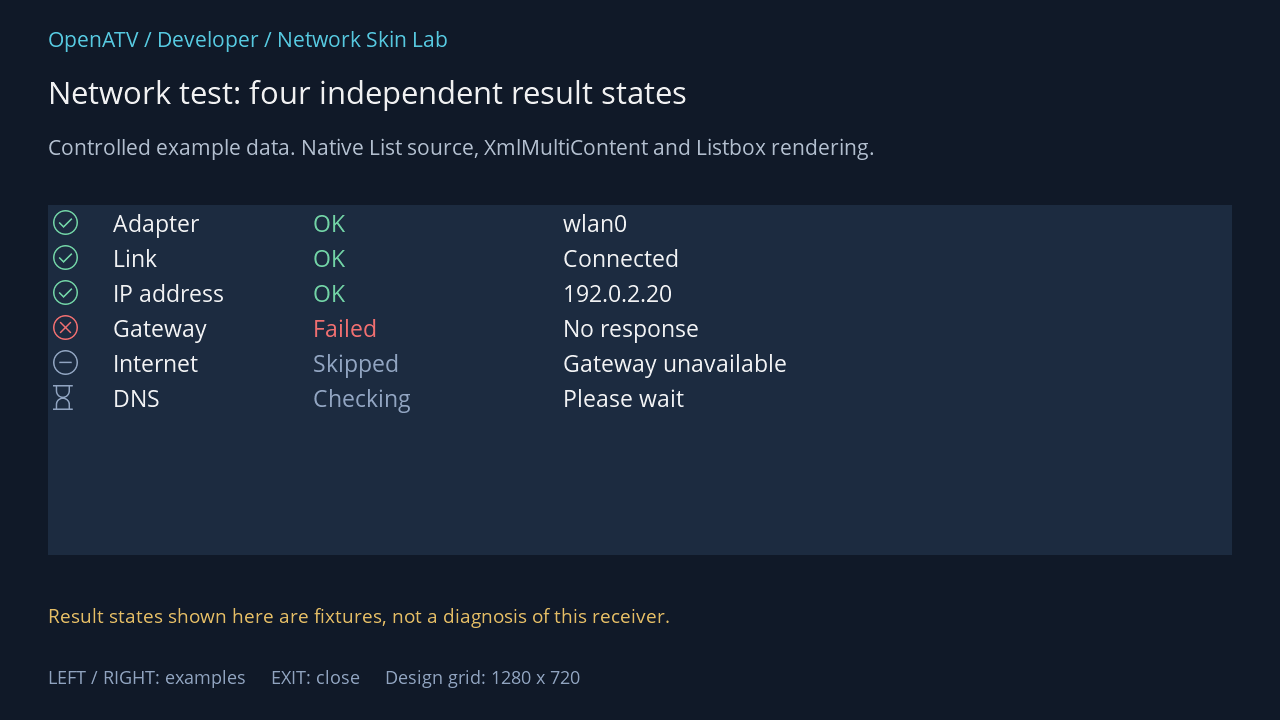
XML used for this result (inside the complete example screen):
<widget source="list" render="Listbox" position="48,205" size="1184,350" scrollbarMode="showNever" selection="false" foregroundColor="#00FFFFFF" backgroundColor="#001C2B40" foregroundColorSelected="#00FFFFFF" backgroundColorSelected="#00344E70"> <template name="Default" fonts="enigma2icons;25,Regular;25" itemHeight="35"> <mode name="default"> <text index="Glyph" position="0,0" size="35,35" font="0" foregroundColor="+Color" foregroundColorSelected="+Color" horizontalAlignment="center" padding="5,0" verticalAlignment="center" /> <text index="Label" position="60,0" size="200,35" font="1" padding="5,0" verticalAlignment="center" /> <text index="Result" position="260,0" size="250,35" font="1" foregroundColor="+Color" foregroundColorSelected="+Color" padding="5,0" verticalAlignment="center" /> <text index="Detail" position="510,0" size="300,35" font="1" padding="5,0" verticalAlignment="center" /> </mode> </template> </widget>Download complete network-test.xml · Download all examples and the test plugin
The list source exposes Glyph, Label, Result, Detail and Color. It has a default mode and no row selector. The normal owner disables selection because these are results, not selectable settings.
| State | Glyph | Meaning |
|---|---|---|
ok |
E914 |
Successful check |
fail |
E918 |
Failed check |
skip |
E92B |
Check not performed |
busy |
E9F8 |
Check in progress |
Use +Color on both normal and selected colour attributes where needed. Leave room for all six rows: adapter, link, IP address, gateway, internet and DNS. A skipped test is not a failure and a busy state is not a successful result. The text remains essential even when the glyph and colour are clear.
Source: NetworkTest — exact field names from the pinned Python owner:
list · List source
| XML index name | Tuple position |
|---|---|
Glyph | 0 |
Label | 1 |
Result | 2 |
Detail | 3 |
Color | 4 |
Complete built-in NetworkTest fallback XML
This is the source definition, including production button sources. It is distinct from the lab frame used in the illustration.
<screen name="NetworkTest" title="Network Test" position="center,center" size="830,280" resolution="1280,720"> <widget source="list" render="Listbox" position="10,10" size="e-20,e-60" scrollbarMode="showNever" selection="false"> <template name="Default" fonts="enigma2icons;25,Regular;25" itemHeight="35"> <mode name="default"> <text index="Glyph" position="0,0" size="35,35" font="0" foregroundColor="+Color" foregroundColorSelected="+Color" horizontalAlignment="center" padding="5,0" verticalAlignment="center" /> <text index="Label" position="60,0" size="200,35" font="1" padding="5,0" verticalAlignment="center" /> <text index="Result" position="260,0" size="250,35" font="1" foregroundColor="+Color" foregroundColorSelected="+Color" padding="5,0" verticalAlignment="center" /> <text index="Detail" position="510,0" size="300,35" font="1" padding="5,0" verticalAlignment="center" /> </mode> </template> </widget> <widget source="key_red" render="Label" position="10,e-50" size="180,40" backgroundColor="key_red" font="Regular;20" foregroundColor="key_text" horizontalAlignment="center" wrap="off" verticalAlignment="center"> <convert type="ConditionalShowHide" /> </widget> <widget source="key_green" render="Label" position="200,e-50" size="180,40" backgroundColor="key_green" font="Regular;20" foregroundColor="key_text" horizontalAlignment="center" wrap="off" verticalAlignment="center"> <convert type="ConditionalShowHide" /> </widget> <widget source="key_help" render="Label" position="e-100,e-50" size="90,40" backgroundColor="key_back" font="Regular;20" foregroundColor="key_text" horizontalAlignment="center" wrap="off" verticalAlignment="center"> <convert type="ConditionalShowHide" /> </widget> </screen>Information and logs
Abschnitt betitelt „Information and logs“InformationNetwork tries InformationNetwork, then NetworkInformation, then the generic Information design. The adapter-specific NetworkInformation subclass uses the same inherited presentation. Its named information ScrollLabel carries formatted headings and values.
The information base reads six colours from that ScrollLabel in the order headings, subheadings, prompts, values, messages, features. Use its colors attribute for this particular contract. This is a different six-colour convention from the overview list’s connected/no-link/idle palette.
<widget name="information" position="20,20" size="1060,470" font="Regular;22" colors="#00FFFFFF,#005BD4EC,#00BDCADA,#00FFFFFF,#00F3C86A,#0078DFAD" />NetworkLogScreen instead owns a ScrollLabel called infotext, and tries the caller-selected name (default NetworkInadynLog) before NetworkLogScreen. Preserve scrolling and allocate space for long diagnostic lines. Do not reuse name="information" for that owner.
Restart progress is shared
Abschnitt betitelt „Restart progress is shared“RestartNetwork selects DUMMY; its action shows Processing. The latter owns named progress (ProgressBar) and description (Label) components. The shared helper can animate an endless progress display while the restart is running. It is activity feedback, not a precise percentage of network readiness.
Design Processing with enough space for a multiline description. It is shared by other operations, so test those consumers before changing it globally. A dedicated, permanently visible network “100%” label would misrepresent the operation.