
Your first screen, widget and label
The screen is the owner
Abschnitt betitelt „The screen is the owner“A Python Screen owns the components and closes them when the dialog ends. The XML supplies geometry and styling. This complete small class illustrates the contract:
from Components.ActionMap import ActionMapfrom Components.Label import Labelfrom Screens.Screen import Screen
class MyHello(Screen):    skin = """    <screen name="MyHello" position="center,center" size="700,240"            resolution="1280,720" title="Hello OpenATV">        <eLabel position="30,20" size="640,50" font="Regular;26"                text="Static text from XML" />        <widget name="greeting" position="30,90" size="640,60"                font="Regular;32" foregroundColor="#005BD4EC" />    </screen>    """
    def __init__(self, session):        Screen.__init__(self, session)        self["greeting"] = Label("Hello from Python")        self["actions"] = ActionMap(["OkCancelActions"], {            "ok": self.close,            "cancel": self.close,        }, -1)
An existing plugin opens it with session.open(MyHello). A screen class alone is not automatically an entry in the Plugins menu; that requires a PluginDescriptor. The downloadable Skin Lab supplies the registration and capture tooling.
What each part does
Abschnitt betitelt „What each part does“| Part | Meaning |
|---|---|
Screen.__init__(self, session) |
Initialises the screen before adding components |
self["greeting"] |
Registers the GUI component with exactly that case-sensitive name |
<widget name="greeting"> |
Styles the registered Label; it does not instantiate the Python Label |
<eLabel text="…"> |
Creates static decoration directly from XML |
ActionMap |
Connects action names to Python callbacks; no visible widget is needed for it |
self.close |
Returns control to the previous screen through the session |
self.skinName |
Name or ordered list of names used to find an external skin layout; defaults to the class name |
Native result
Abschnitt betitelt „Native result“The teaching screen below adds a neutral frame around the same named/static-label contrast. Its downloadable XML is the exact layout used for this image.
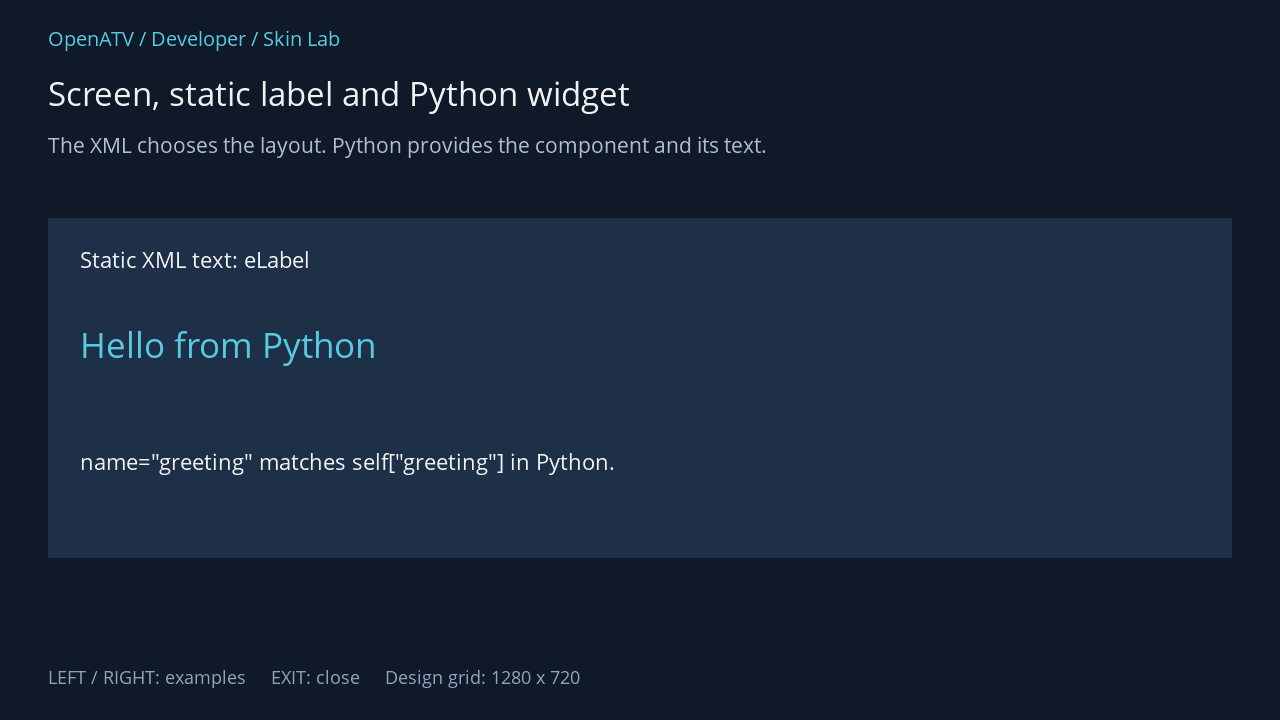
XML used for this result (inside the complete example screen):
<eRectangle position="48,218" size="1184,340" backgroundColor="#001E3048" /> <eLabel position="80,244" size="1080,46" font="Regular;24" text="Static XML text: eLabel" foregroundColor="#00FFFFFF" backgroundColor="#001E3048" /> <widget name="greeting" position="80,320" size="1080,68" font="Regular;38" foregroundColor="#005BD4EC" backgroundColor="#001E3048" zPosition="1" /> <eLabel position="80,446" size="1080,60" font="Regular;24" text='name="greeting" matches self["greeting"] in Python.' foregroundColor="#00FFFFFF" backgroundColor="#001E3048" />Download complete hello.xml · Download all examples and the test plugin
Lifecycle and updates
Abschnitt betitelt „Lifecycle and updates“Create components in __init__. Their native .instance is not guaranteed to exist there. Use onLayoutFinish for work requiring final native geometry, and clean up owned timers or subscriptions on close.
Change a GUI Label with self["greeting"].setText("Updated text"). For a StaticText source, assign .text; its notification informs connected renderers. Avoid writing directly to a native instance when the Python component already exposes the operation.
If a visible GUI component is created in Python but not represented in the selected skin layout, the engine can reject the screen with an unused-component error. Conversely, a name that Python never creates cannot be skinned. Start from the screen’s actual component definitions.