
Network shares and mounts — two different list contracts
The share browser discovers servers and exported folders. The mount overview lists saved mount definitions and their current mount state. They have separate Python owners and different tuple layouts.
NetworkShares: host and share rows
Section titled “NetworkShares: host and share rows”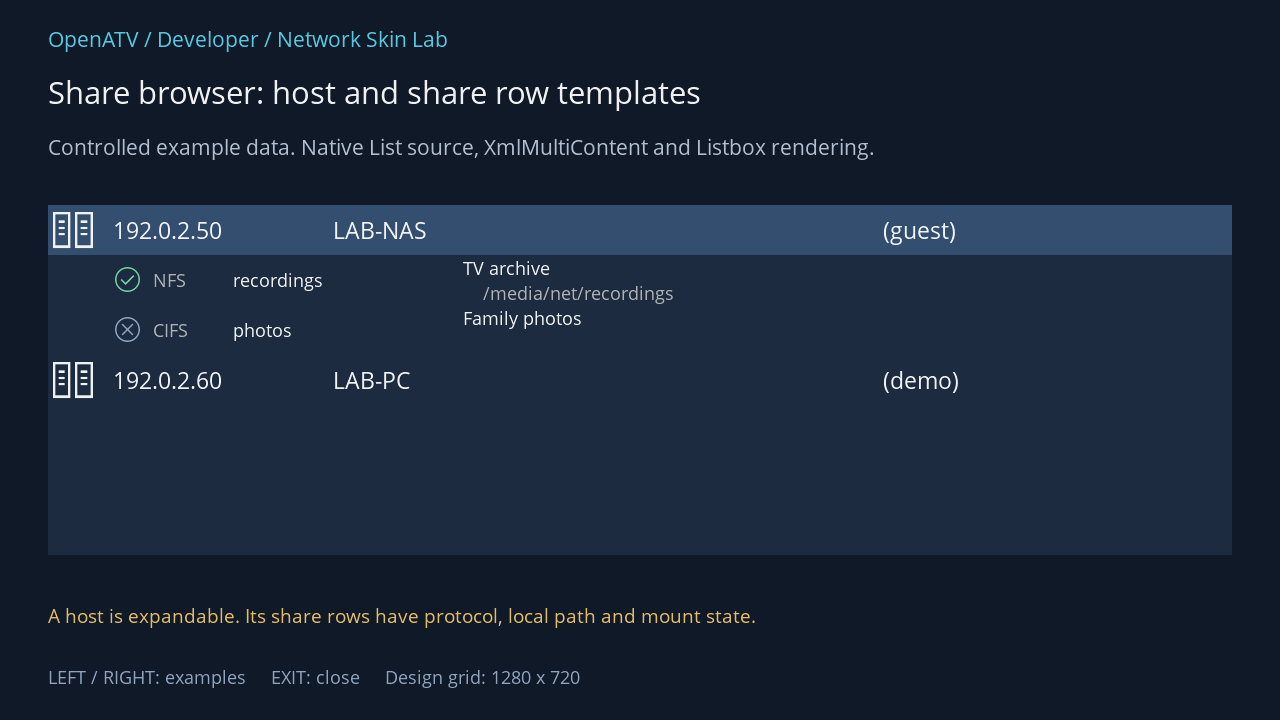
XML used for this result (inside the complete example screen):
<widget source="list" render="Listbox" position="48,205" size="1184,350" foregroundColor="#00FFFFFF" backgroundColor="#001C2B40" foregroundColorSelected="#00FFFFFF" backgroundColorSelected="#00344E70"> <template name="Default" fonts="enigma2icons;40,Regular;25,enigma2icons;25,Regular;20" itemHeight="50"> <rowtemplate> <text index="Glyph" position="0,0" size="50,50" font="0" horizontalAlignment="center" padding="5,0" verticalAlignment="center" /> <text index="IPAddress" position="60,0" size="220,50" font="1" padding="5,0" verticalAlignment="center" /> <text index="Name" position="280,0" size="550,50" font="1" padding="5,0" verticalAlignment="center" /> <text index="Username" position="830,0" size="250,50" font="1" padding="5,0" verticalAlignment="center" /> </rowtemplate> <rowtemplate> <text index="Glyph" position="60,0" size="40,50" font="2" foregroundColor="+GlyphColor" horizontalAlignment="center" padding="5,0" verticalAlignment="center" /> <text index="Type" position="100,0" size="80,50" font="3" foregroundColor="gray" padding="5,0" verticalAlignment="center" /> <text index="Name" position="180,0" size="230,50" font="3" padding="5,0" verticalAlignment="center" /> <text index="Description" position="410,0" size="670,25" font="3" padding="5,0" verticalAlignment="center" /> <text index="LocalPath" position="430,25" size="650,25" font="3" foregroundColor="gray" padding="5,0" verticalAlignment="center" /> </rowtemplate> </template> </widget>Download complete network-shares.xml · Download all examples and the test plugin
NetworkShares uses list, plus a named description Label and contextual key sources. Position zero selects the row template: 0 is a host, 1 is a share. Unlike the overview’s header, a host row is a selectable item that can expand or collapse. Do not apply the overview’s “selector zero is non-selectable” rule here.
| Field | Host row | Share row |
|---|---|---|
Glyph |
Host glyph | Mounted/not-mounted glyph |
GlyphColor |
Unused by the built-in host drawing | Colour supplied for the mount state |
IPAddress |
Server address | Not the share name |
Type |
— | NFS or CIFS |
Name |
Hostname | Share name |
LocalPath |
— | Configured local path where available |
Description |
— | Share description/comment where available |
Username |
Separate credential identity caption, for example (guest) |
— |
NameUsername |
Combined hostname and username for a compact layout | — |
Data |
Internal action data | Internal action data |
Display either Name plus Username, or the combined NameUsername, according to the space you allocate. Showing all three duplicates the identity. Never render Data as a string; it is not a label and may carry implementation details.
The host glyph is EA6D; mounted uses E914, not-mounted uses E918. The owner intentionally uses an idle colour for an unconfigured/not-mounted share. A red cross can otherwise suggest an error when a discovered folder simply has not been configured. Preserve the distinction in text or colour.
foregroundColor="+GlyphColor" reads the row colour. Add a suitable selected colour rule if your design’s selection background reduces contrast. The screen supplies only GlyphColor, so inventing GlyphColorSelected in this template will not add another data field.
Source: NetworkShares — exact field names from the pinned Python owner:
list · List source
| XML index name | Tuple position |
|---|---|
Reserved_for_rowTemplate | 0 |
Glyph | 1 |
GlyphColor | 2 |
IPAddress | 3 |
Type | 4 |
Name | 5 |
LocalPath | 6 |
Description | 7 |
Username | 8 |
NameUsername | 9 |
Data | 10 |
Complete built-in NetworkShares fallback XML
This is the source definition, including production button sources. It is distinct from the lab frame used in the illustration.
<screen name="NetworkShares" title="Network Shares Browser" position="center,center" size="1100,505" resolution="1280,720"> <widget source="list" render="Listbox" position="10,10" size="e-20,e-105"> <template name="Default" fonts="enigma2icons;40,Regular;25,enigma2icons;25,Regular;20" itemHeight="50"> <rowtemplate> <text index="Glyph" position="0,0" size="50,50" font="0" horizontalAlignment="center" padding="5,0" verticalAlignment="center" /> <text index="IPAddress" position="60,0" size="220,50" font="1" padding="5,0" verticalAlignment="center" /> <text index="Name" position="280,0" size="550,50" font="1" padding="5,0" verticalAlignment="center" /> <text index="Username" position="830,0" size="250,50" font="1" padding="5,0" verticalAlignment="center" /> </rowtemplate> <rowtemplate> <text index="Glyph" position="60,0" size="40,50" font="2" foregroundColor="+GlyphColor" horizontalAlignment="center" padding="5,0" verticalAlignment="center" /> <text index="Type" position="100,0" size="80,50" font="3" foregroundColor="gray" padding="5,0" verticalAlignment="center" /> <text index="Name" position="180,0" size="230,50" font="3" padding="5,0" verticalAlignment="center" /> <text index="Description" position="410,0" size="670,25" font="3" padding="5,0" verticalAlignment="center" /> <text index="LocalPath" position="430,25" size="650,25" font="3" foregroundColor="gray" padding="5,0" verticalAlignment="center" /> </rowtemplate> </template> </widget> <widget name="description" position="10,e-85" size="e-20,25" font="Regular;20" padding="5,0" verticalAlignment="center" widgetBorderColor="gray" widgetBorderWidth="1" /> <widget source="key_red" render="Label" position="10,e-50" size="180,40" backgroundColor="key_red" font="Regular;20" foregroundColor="key_text" horizontalAlignment="center" wrap="off" verticalAlignment="center"> <convert type="ConditionalShowHide" /> </widget> <widget source="key_green" render="Label" position="200,e-50" size="180,40" backgroundColor="key_green" font="Regular;20" foregroundColor="key_text" horizontalAlignment="center" wrap="off" verticalAlignment="center"> <convert type="ConditionalShowHide" /> </widget> <widget source="key_yellow" render="Label" position="390,e-50" size="180,40" backgroundColor="key_yellow" font="Regular;20" foregroundColor="key_text" horizontalAlignment="center" wrap="off" verticalAlignment="center"> <convert type="ConditionalShowHide" /> </widget> <widget source="key_menu" render="Label" position="e-200,e-50" size="90,40" backgroundColor="key_back" font="Regular;20" foregroundColor="key_text" horizontalAlignment="center" wrap="off" verticalAlignment="center"> <convert type="ConditionalShowHide" /> </widget> <widget source="key_help" render="Label" position="e-100,e-50" size="90,40" backgroundColor="key_back" font="Regular;20" foregroundColor="key_text" horizontalAlignment="center" wrap="off" verticalAlignment="center"> <convert type="ConditionalShowHide" /> </widget> </screen>NetworkMountsOverview: configured mount state
Section titled “NetworkMountsOverview: configured mount state”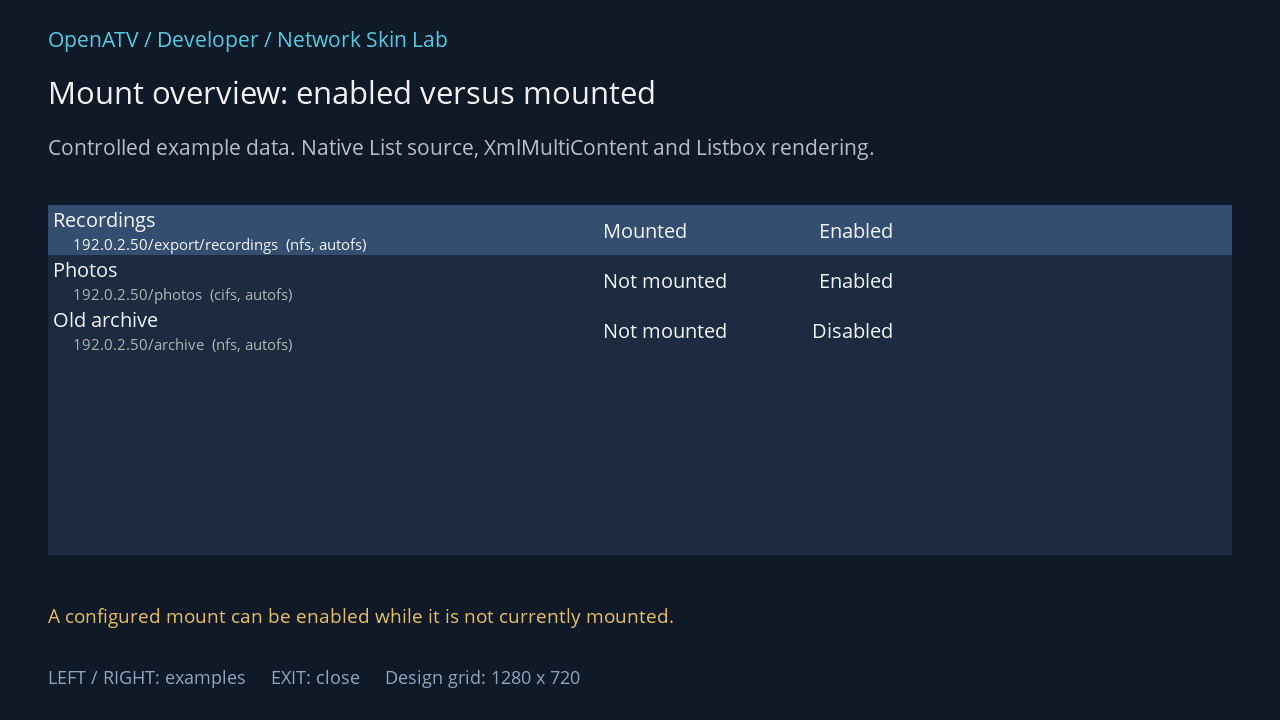
XML used for this result (inside the complete example screen):
<widget source="mountList" render="Listbox" position="48,205" size="1184,350" foregroundColor="#00FFFFFF" backgroundColor="#001C2B40" foregroundColorSelected="#00FFFFFF" backgroundColorSelected="#00344E70"> <templates> <template name="Default" fonts="Regular;22,Regular;17" itemHeight="50"> <mode name="default"> <text index="ShareName" position="0,0" size="550,27" font="0" padding="5,0" verticalAlignment="center" /> <text index="Description" position="20,27" size="530,23" font="1" padding="5,0" foregroundColor="gray" verticalAlignment="center" /> <text index="Mounted" position="550,0" size="150,50" font="0" padding="5,0" verticalAlignment="center" /> <text index="Active" position="700,0" size="150,50" font="0" horizontalAlignment="right" padding="5,0" verticalAlignment="center" /> </mode> </template> </templates> </widget>Download complete network-mounts.xml · Download all examples and the test plugin
This screen supplies mountList with a normal default mode. Tuple position zero is already ShareName: there is no row-template selector. The public fields are ShareName, Server, RemotePath, Protocol, Mode, Mounted, Active and Description.
Mounteddescribes whether the repository currently sees that mount as mounted.Activedescribes whether the saved definition is enabled.Modeis the mount method; it is not the XML list style.Descriptionis preformatted server/path and protocol/method text. A skin may instead arrange the separate fields if it needs a different hierarchy.
The private mount object follows at position 8. Preserve action ownership: selecting a row edits its definition, while the yellow caption follows mount/unmount availability. The skin must not decide that an enabled definition is already mounted.
Long server names and paths need either adequate second-line space or a deliberate truncation strategy. Keep the current-state columns readable independently of the filename length. Test an empty mount list as well as several definitions.
Source: NetworkMountsOverview — exact field names from the pinned Python owner:
mountList · List source
| XML index name | Tuple position |
|---|---|
ShareName | 0 |
Server | 1 |
RemotePath | 2 |
Protocol | 3 |
Mode | 4 |
Mounted | 5 |
Active | 6 |
Description | 7 |
Complete built-in NetworkMountsOverview fallback XML
This is the source definition, including production button sources. It is distinct from the lab frame used in the illustration.
<screen name="NetworkMountsOverview" title="Network Mounts Overview" position="center,center" size="970,370" resolution="1280,720"> <widget source="mountList" render="Listbox" position="10,10" size="e-20,e-70"> <templates> <template name="Default" fonts="Regular;22,Regular;17" itemHeight="50"> <mode name="default"> <text index="ShareName" position="0,0" size="550,27" font="0" padding="5,0" verticalAlignment="center" /> <text index="Description" position="20,27" size="530,23" font="1" padding="5,0" foregroundColor="gray" verticalAlignment="center" /> <text index="Mounted" position="550,0" size="150,50" font="0" padding="5,0" verticalAlignment="center" /> <text index="Active" position="700,0" size="150,50" font="0" horizontalAlignment="right" padding="5,0" verticalAlignment="center" /> </mode> </template> </templates> </widget> <widget source="key_red" render="Label" position="10,e-50" size="180,40" backgroundColor="key_red" font="Regular;20" foregroundColor="key_text" horizontalAlignment="center" wrap="off" verticalAlignment="center"> <convert type="ConditionalShowHide" /> </widget> <widget source="key_green" render="Label" position="200,e-50" size="180,40" backgroundColor="key_green" font="Regular;20" foregroundColor="key_text" horizontalAlignment="center" wrap="off" verticalAlignment="center"> <convert type="ConditionalShowHide" /> </widget> <widget source="key_yellow" render="Label" position="390,e-50" size="180,40" backgroundColor="key_yellow" font="Regular;20" foregroundColor="key_text" horizontalAlignment="center" wrap="off" verticalAlignment="center"> <convert type="ConditionalShowHide" /> </widget> <widget source="key_menu" render="Label" position="e-200,e-50" size="90,40" backgroundColor="key_back" font="Regular;20" foregroundColor="key_text" horizontalAlignment="center" wrap="off" verticalAlignment="center"> <convert type="ConditionalShowHide" /> </widget> <widget source="key_help" render="Label" position="e-100,e-50" size="90,40" backgroundColor="key_back" font="Regular;20" foregroundColor="key_text" horizontalAlignment="center" wrap="off" verticalAlignment="center"> <convert type="ConditionalShowHide" /> </widget> </screen>Editing and credentials
Section titled “Editing and credentials”NetworkMountSetup uses Setup key NetworkMounts; NetworkCredentials uses NetworkCredentials. These are configuration forms, so use the shared Setup contract. Credential values are edited by the config component. Do not replace a masked editor with a plain source renderer, or include real passwords in a skin demonstration.
The receiver’s front-panel mount summary is NetworkMountsSummary with SetupSummary, exposing entry and value. Design it independently of the main television list.